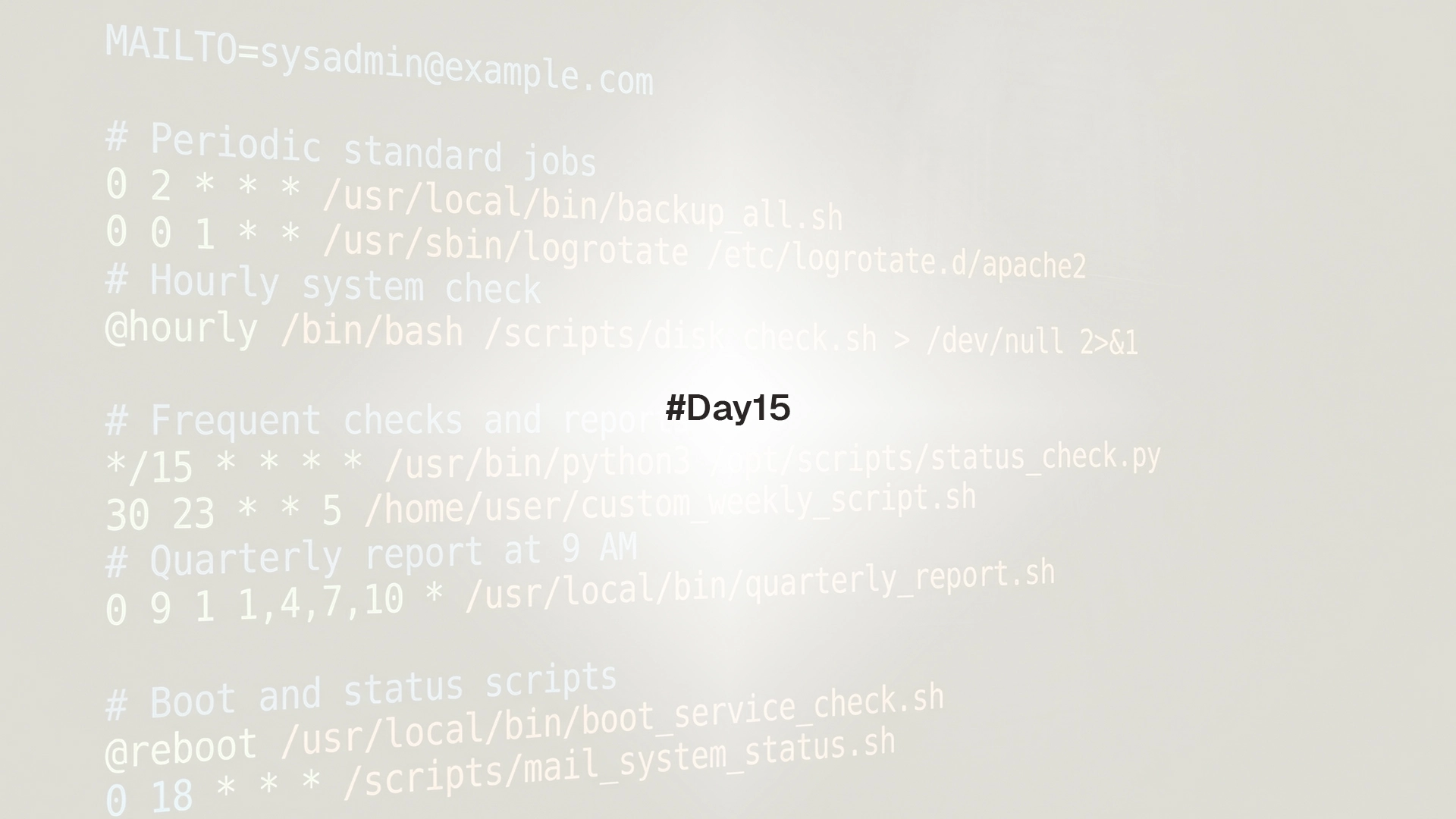
Linux offers two standard ways to run jobs on a schedule: classic cron and modern systemd timers. This lesson explains how to create reliable schedules, control environment and logs, avoid overlapping runs, and verify results.
Cron is simple and available everywhere. Systemd timers integrate with service management, logging, and dependencies. Use cron for quick per user jobs. Use timers when jobs need robust logging, boot catch up, jitter, or service dependencies.
Prerequisites
- Day 14 on shell scripting
- A terminal with sudo privileges
Cron basics
Each user can have a personal crontab. The cron daemon runs jobs in minimal environments.
# edit user crontab
crontab -e

# list current entries
crontab -l

# system crontab and directories
sudo ls -l /etc/crontab /etc/cron.*
Crontab entry format:
# ┌ minute (0-59)
# │  ┌ hour (0-23)
# │  │   ┌ day of month (1-31)
# │  │   │  ┌ month (1-12 or names)
# │  │   │  │  ┌ day of week (0-7 or names, 0 and 7 are Sunday)
# │  │   │  │  │
# *  *   *  *  *  command
Special strings:
@reboot,@yearly,@annually,@monthly,@weekly,@daily,@hourly
Examples:
# run a script every day at 02:30
30 2 * * * /home/user/bin/backup.sh >>/home/user/logs/backup.log 2>&1

# run every 15 minutes
*/15 * * * * /home/user/bin/healthcheck.sh >/dev/null 2>&1

# run at boot
@reboot /home/user/bin/warmup.sh
Cron uses a very small default PATH. Set PATH at the top of the crontab, or use absolute paths. Set variables your script needs. Example:
PATH=/usr/local/sbin:/usr/local/bin:/usr/sbin:/usr/bin:/sbin:/bin
SHELL=/bin/bash
MAILTO=""
Cron logging and mail
- Anything written to stdout or stderr is mailed to the user unless
MAILTOis empty or output is redirected - On many systems, cron logs appear in
/var/log/syslogor/var/log/cron
Redirect to a file and keep both streams:
0 3 * * * /home/user/bin/report.sh >>/home/user/logs/report.log 2>&1anacron for machines that sleep
Laptops may miss 02:00 if powered off. anacron runs daily, weekly, and monthly jobs at the next opportunity.
sudo apt install -y anacron 2>/dev/null || sudo dnf install -y cronie-anacron 2>/dev/nullSystem jobs for anacron live under /etc/anacrontab and /etc/cron.*.
Prevent overlapping runs with flock
Use a lock to ensure only one instance runs at a time.
# crontab line, runs every 5 minutes but skips if a previous run is active
*/5 * * * * /usr/bin/flock -n /run/myjob.lock /home/user/bin/myjob.sh >>/home/user/logs/myjob.log 2>&1
-n makes flock fail fast if the lock exists. Use -w 30 to wait up to 30 seconds instead.
Systemd timers overview
Timers pair a .timer schedule with a .service that does the work. Benefits include integration with journalctl, boot catch up with Persistent=true, jitter with RandomizedDelaySec, and easy inspection with systemctl list-timers.
Create files under /etc/systemd/system/ for system wide timers, or under ~/.config/systemd/user/ for per user timers.
Example: daily backup at 02:30 with jitter and boot catch up
Create the service unit:
# /etc/systemd/system/backup.service
[Unit]
Description=Daily backup

[Service]
Type=oneshot
ExecStart=/usr/local/bin/backup.sh
# pass environment or load from a file
Environment=BACKUP_TARGET=/srv/backups
EnvironmentFile=-/etc/default/backup
Create the timer unit:
# /etc/systemd/system/backup.timer
[Unit]
Description=Run backup daily at 02:30

[Timer]
OnCalendar=*-*-* 02:30:00
Persistent=true
RandomizedDelaySec=15m
AccuracySec=1m

[Install]
WantedBy=timers.target
Enable and start:
sudo systemctl daemon-reload
sudo systemctl enable --now backup.timer
systemctl list-timers | grep backup
Logs and last run:
systemctl status backup.service
journalctl -u backup.service -n 50 --no-pagerWith Persistent=true, systemd runs missed activations as soon as the system boots again. This keeps daily tasks consistent on laptops and servers that reboot for maintenance.
Calendar expressions
Examples for OnCalendar:
daily,weekly,hourlyMon..Fri 09:00*-*-01 03:15:00on the first day of each month2025-10-05 22:00Sun *-*-* 01:30:00
Non overlapping runs with systemd
Use a lock inside the service or let systemd refuse a second start while one is running.
# /usr/local/bin/myjob.sh called by myjob.service
#!/usr/bin/env bash
set -euo pipefail
exec /usr/bin/flock -n /run/myjob.lock /usr/local/bin/myjob-real.sh
Systemd will queue another start if one is in progress. The flock pattern prevents concurrent work.
User timers without sudo
Per user timers live in ~/.config/systemd/user/ and run under the user session.
mkdir -p ~/.config/systemd/user

cat > ~/.config/systemd/user/notes.service <<'EOF'
[Unit]
Description=Append timestamp to notes

[Service]
Type=oneshot
ExecStart=/usr/bin/sh -c 'date +%F" "%T >> "$HOME/notes.log"'
EOF

cat > ~/.config/systemd/user/notes.timer <<'EOF'
[Unit]
Description=Every 15 minutes

[Timer]
OnCalendar=*:0/15
Persistent=true

[Install]
WantedBy=timers.target
EOF

systemctl --user daemon-reload
systemctl --user enable --now notes.timer
systemctl --user list-timers
journalctl --user -u notes.service -n 20 --no-pagerTo keep user timers running without an active login on some distributions, enable lingering: sudo loginctl enable-linger $USER.
Time zones and time sources
Confirm system time and time zone.
timedatectlIf jobs appear to run at the wrong time, check NTP status and the selected zone. Systemd timers use the system time zone by default.
Practical lab
-
Create a user crontab that writes a timestamp to
~/cron-demo.logevery 2 minutes. Add a safe PATH line at the top and test that logs capture output. -
Add
flockto a cron entry that runs every minute, then sleep for 120 seconds inside the script to confirm that a second run is skipped while the first is active. -
Build a
cleanup.serviceandcleanup.timerpair that removes files older than 14 days from~/tmpevery day at 01:15. UseRandomizedDelaySec=10m. -
Switch to a per user timer by moving the units into
~/.config/systemd/user/and enabling them withsystemctl --user. -
Verify a missed run after reboot by stopping the timer for a day, setting the schedule to a past time, enabling
Persistent=true, and checking the journal.
Troubleshooting
- Cron job runs in the terminal but not in cron. The environment is different. Set PATH, use absolute paths, and refer to scripts with full paths.
- No cron mail. Install an MTA or set
MAILTO=""and redirect output to a log file. crontab: installing new crontabshows but jobs never trigger. Confirm the cron service name on the distribution and start or enable it:sudo systemctl status cronorsudo systemctl status crond.- Systemd timer did not fire. Inspect with
systemctl list-timers, checksystemctl status <name>.timer, and read logs withjournalctl -u <name>.service. - Job overlaps or double runs. Wrap the script with
flockfor cron and systemd services. - Wrong time. Check
timedatectl, verify NTP sync, and confirm the time zone.
Next steps
Day 16 covers service management with systemd. It explains units, status, enable and disable, logs, dependencies, targets, and safe patterns for writing custom services.